
In the modern office, where time is money and productivity is paramount, the placement of essential devices like printers and copiers often goes overlooked. Yet poor positioning can result in bottlenecks, workflow disruptions, and even increased security risks. Whether you’re designing a new office layout or rethinking your current setup, strategically positioning your printing equipment can make a measurable difference.
Below, we explore the key considerations to help businesses make informed decisions about where to place printers and copiers to support productivity, security, and operational flow.
1. Proximity to Key Users and Departments
Printers and copiers should be located near the departments or teams that use them most. For example:
- Marketing and HR may frequently print brochures, handouts, or onboarding documents.
- Accounting teams might need proximity for secure check printing or reports.
- Legal departments often require immediate access to printed contracts and legal filings.
Minimizing walking distance helps reduce downtime and keeps employees focused on their tasks.
2. Avoiding Bottlenecks and Traffic Jams
A single high-traffic printer in a shared hallway may seem convenient—until three employees are waiting to pick up sensitive documents while another is troubleshooting a paper jam. To avoid productivity slowdowns:
- Distribute devices based on user density.
- Consider multiple multifunction devices (MFDs) for larger departments.
- Place devices in open, accessible areas but away from tight corridors or break rooms.
3. Prioritizing Secure and Controlled Access
Security should be top of mind when dealing with printed output—especially in industries handling private or regulated data such as healthcare, finance, or law. Place devices in areas where:
- Only authorized users have access.
- Output trays aren’t exposed to high foot traffic.
- Secure print release or user authentication features can be fully leveraged.
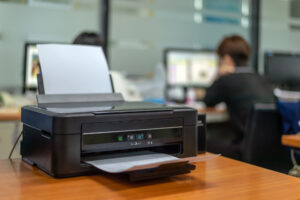 4. Integrating with Digital Workflows
Modern offices rely on cloud-based and networked printing systems. To support seamless digital workflows:
- Ensure devices are connected to the network in locations with strong and stable connectivity.
- Position machines where scanning and uploading documents to cloud storage, email, or document management systems is convenient.
- Consider centralized devices that can easily integrate with digital document workflows without interrupting physical traffic flow.
5. Accounting for Noise and Distractions
Printers and copiers—especially older or high-volume models—can generate noise that distracts employees. Avoid placing them:
- In or near shared workspaces or quiet zones.
- Directly adjacent to desks or meeting areas.
Instead, use alcoves, enclosed printer rooms, or low-traffic corners to keep distractions to a minimum.
6. Accessibility and ADA Compliance
All employees should be able to access essential office equipment easily and comfortably. Keep these factors in mind:
- Ensure floor space allows for wheelchair access and maneuvering.
- Position control panels at an accessible height.
- Avoid clutter or obstacles that may hinder mobility.
7. Serviceability and Maintenance Access
Devices that are difficult to access can cause delays when maintenance is required. Make sure technicians can:
- Open all panels and trays without moving furniture.
- Access power outlets, network ports, and ventilation.
- Remove and replace devices with minimal disruption.
8. Environmental Considerations
Heat, dust, and humidity can shorten the lifespan of office equipment. Place printers and copiers in:
- Well-ventilated areas, away from HVAC exhausts or direct sunlight.
- Dust-free environments—not next to copy paper storage or unpacking zones.
- Stable temperature zones to reduce mechanical stress.
9. Centralized vs. Decentralized Deployment
Depending on your office size and workflow:
- Centralized setups reduce hardware costs and can streamline IT management but may cause congestion.
- Decentralized setups increase user convenience and distribute traffic but require more devices and maintenance.
Consider usage analytics, employee feedback, and security requirements when choosing between the two.
Conclusion
Optimizing printer and copier placement isn’t just a matter of convenience—it’s a strategic decision that impacts your office’s productivity, security, and employee satisfaction. By evaluating user behavior, office layout, and technical requirements, your business can position printing equipment where it supports—not hinders—your operations.
At DEX Imaging, we help businesses of all sizes evaluate and design efficient print environments. From device placement consulting to ongoing managed print services, we make your office work smarter.
Ready to assess your print layout? Contact us today for a custom workflow evaluation.