
on 15 March, 2024
How to Prevent and Fix Paper Jams in Your Printer or Copier
Paper jams are one of the most common and frustrating issues encountered with printers and copiers. Not only do they halt your work, but they can also lead to wasted time and resources. Fortunately, with a bit of knowledge and preventive care, most paper jams can be avoided or easily resolved. Here's a comprehensive guide
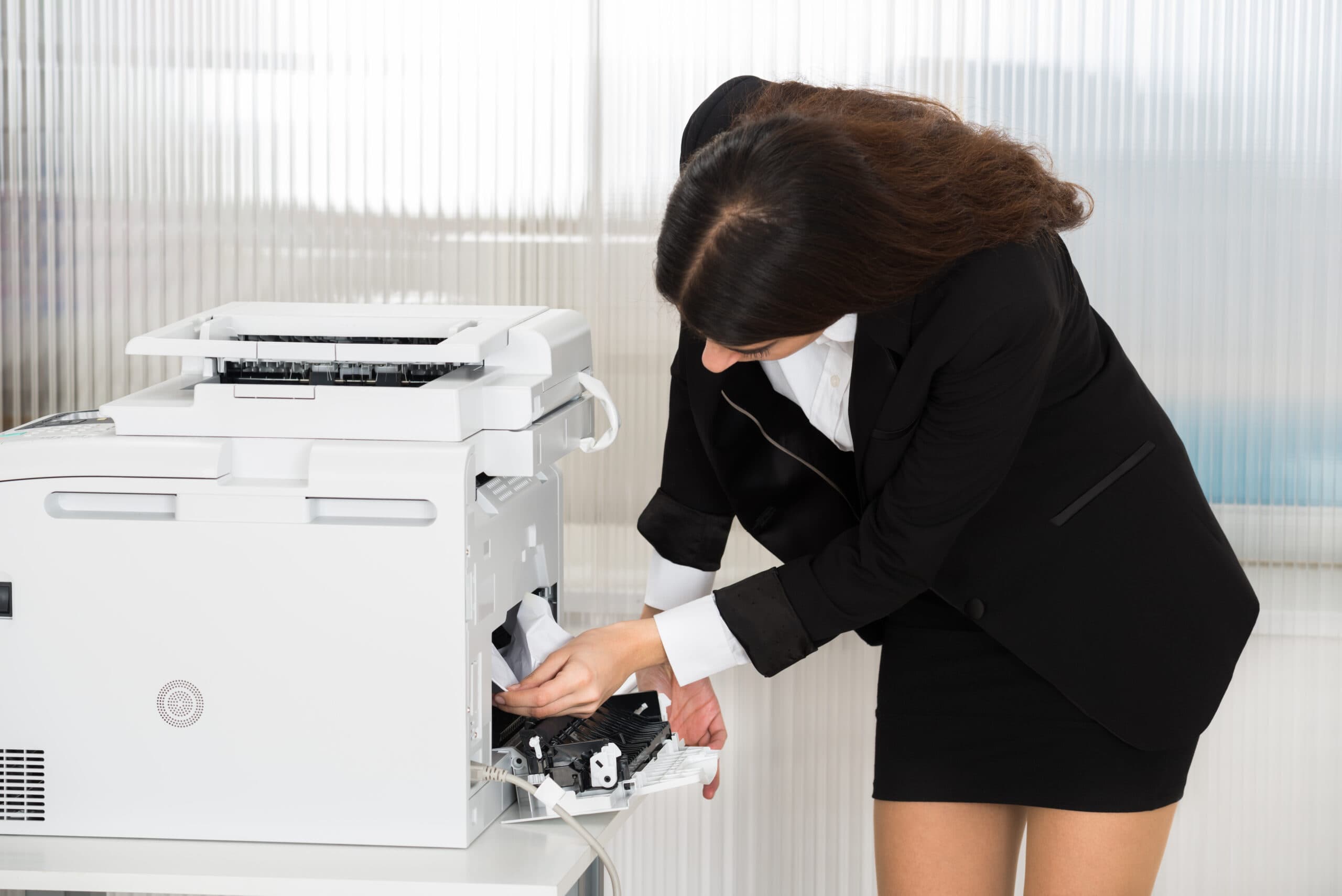
Paper jams are one of the most common and frustrating issues encountered with printers and copiers. Not only do they halt your work, but they can also lead to wasted time and resources. Fortunately, with a bit of knowledge and preventive care, most paper jams can be avoided or easily resolved. Here’s a comprehensive guide on how to prevent and fix paper jamming in your printer or copier.
Preventing Paper Jams
- Use the Right Type of Paper Ensure you’re using the correct paper type for your machine. Check the printer or copier manual for recommended paper specifications such as weight, size, and type. Using paper that’s too thick, too thin, or too glossy can lead to jams.
- Store Paper Properly Store your paper in a cool, dry place to prevent moisture absorption. Moist paper can stick together, causing multiple sheets to feed at once and jam the machine. Also, ensure the paper is not bent, wrinkled, or torn.
- Load Paper Correctly When loading paper, make sure it’s neatly stacked and not overloaded. Fan the stack to separate the sheets slightly, reducing the chance of multiple sheets feeding through the printer at once. Ensure the paper guides are snug but not too tight against the paper.
- Regular Maintenance Keep your printer or copier clean. Dust and debris can accumulate over time, leading to paper jams. Regularly clean the rollers and other accessible parts according to the manufacturer’s instructions.
- Update Your Printer’s Software Manufacturers often release updates that improve the performance of their printers, including how they handle paper. Keeping your printer’s software or firmware updated can help prevent jams.
Fixing Paper Jams
- Turn Off the Machine Before attempting to remove jammed paper, turn off the printer or copier. This can prevent damage to the machine and reduce the risk of injury.
- Open the Access Panels Most printers and copiers have designated access panels or doors for removing jammed paper. Consult your machine’s manual to find these panels.
- Gently Remove the Paper Carefully pull the jammed paper out. Pull in the direction of the paper path to avoid tearing it and leaving pieces behind. If the paper does tear, make sure you remove all the pieces.
- Check for Remaining Paper After removing the jammed paper, check the paper path for any remaining bits of paper or debris that could cause another jam.
- Close the Panels and Restart Once you’ve cleared the jam, close all the access panels securely and turn the printer or copier back on. It’s a good idea to run a test print to ensure everything is working smoothly.
- Consider a Professional Service If you encounter frequent jams or if a jam cannot be easily resolved, it might be time for professional maintenance. There could be underlying issues such as worn-out rollers or a misaligned paper feed that require expert attention.
By following these preventive measures and knowing how to properly fix a paper jam, you can keep your printer or copier running smoothly and maintain productivity. Remember, patience and careful handling are key to resolving paper jams and preventing damage to your machine.