
on 9 August, 2024
Mastering Wireless Printing: A Comprehensive Guide for Apple and Android Devices
The ability to print documents wirelessly from your mobile device can save you time and enhance productivity. Whether you're using an Apple or Android device, wireless printing can dramatically streamline your workflow. Here’s a comprehensive guide on how to set up and use wireless printing for both platforms. Printing Wirelessly from an Apple Device Apple
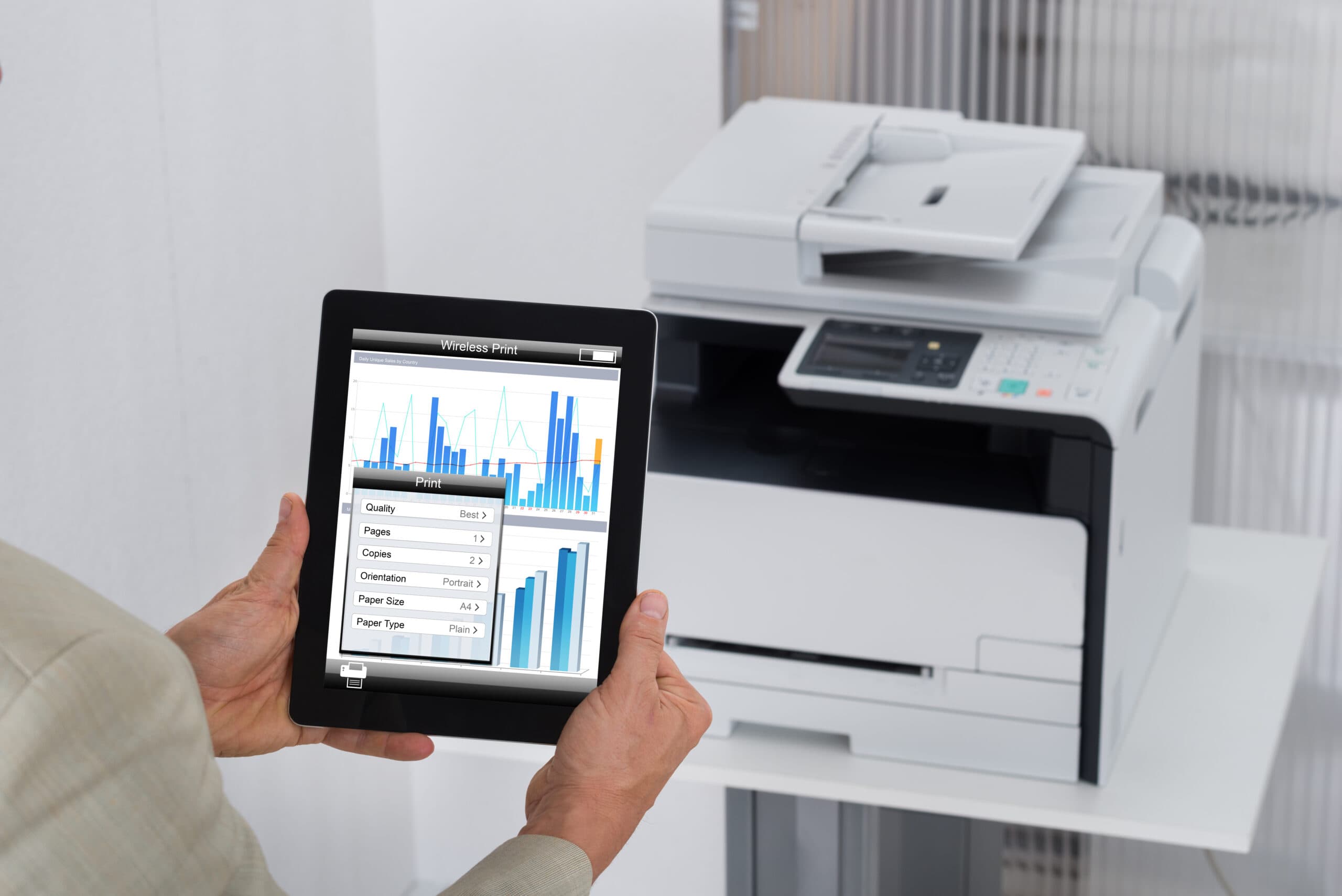
The ability to print documents wirelessly from your mobile device can save you time and enhance productivity. Whether you’re using an Apple or Android device, wireless printing can dramatically streamline your workflow. Here’s a comprehensive guide on how to set up and use wireless printing for both platforms.
Printing Wirelessly from an Apple Device
Apple devices come with built-in support for wireless printing via AirPrint. This feature makes it incredibly simple to print from your iPhone, iPad, or Mac without the need for additional software or drivers.
Step-by-Step Guide to Using AirPrint
- Check Printer Compatibility: Ensure your printer supports AirPrint. Most modern printers offered by DEX Imaging like Kyocera, Konica Minolta, Canon, and Ricoh are compatible.
- Connect to the Same Network: Both your Apple device and the printer should be connected to the same Wi-Fi network.
- Open the Document or Photo: Open the document, email, webpage, or photo you want to print.
- Access the Print Option: Tap the share icon (a square with an upward arrow) and select ‘Print’. Alternatively, you might find the print option in the menu, depending on the app you’re using.
- Select Your Printer: Choose your AirPrint-enabled printer from the list that appears.
- Customize Print Settings: Adjust the number of copies, page range, and other settings if needed.
- Print: Tap ‘Print’ in the upper-right corner.
And that’s it! Your document will be sent to the printer wirelessly.
Troubleshooting AirPrint Issues
- Ensure Compatibility: Double-check that your printer supports AirPrint.
- Network Issues: Make sure both devices are on the same network.
- Restart Devices: Restart both your Apple device and the printer.
- Update Software: Ensure that both your Apple device and the printer have the latest software updates.
Printing Wirelessly from an Android Device
Android devices use a feature called “Google Cloud Print” for wireless printing. Although Google Cloud Print was discontinued in December 2020, many manufacturers have developed their own solutions, and Android has built-in printing support that works with a variety of third-party printing apps.
Step-by-Step Guide to Wireless Printing on Android
- Install a Printing App: Download and install a printing app compatible with your printer. Popular apps included Konica Minolta’s PageScope Mobile.
- Connect to the Same Network: Ensure both your Android device and the printer are connected to the same Wi-Fi network.
- Open the Document or Photo: Open the file you want to print. This can be a document, photo, email, or webpage.
- Access the Print Option: Tap the menu icon (three vertical dots) and select ‘Print’. If ‘Print’ is not visible, tap ‘Share’ or ‘Export’, and then select ‘Print’.
- Select Your Printer: Choose your printer from the list of available printers.
- Customize Print Settings: Adjust settings such as paper size, color, orientation, and number of copies.
- Print: Tap the print icon to send your document to the printer.
Troubleshooting Android Printing Issues
- Check Printer Compatibility: Ensure your printer is compatible with the app you’re using.
- Network Issues: Confirm both devices are on the same network.
- Update Software: Make sure both your Android device and the printer have the latest software updates.
- Reinstall the App: If issues persist, try reinstalling the printing app.
Conclusion
Wireless printing from your Apple or Android device can streamline your workflow and eliminate the need for cumbersome cables and setup. By following the steps outlined above, you can quickly set up and start printing from your mobile devices with ease. Should you encounter any issues, contact our DEXperts below and we will help you resolve them swiftly.