
on 5 April, 2024
Boost Your Print Quality: Enhancing the Output of Your Office Printer and Copier
Poor print quality can be a significant frustration in any office environment, affecting everything from internal documents to client presentations. Whether it’s streaks, smudges, faded text or imperfect images, subpar prints can detract from the professionalism of your work. Fortunately, there are several steps you can take to troubleshoot and improve the quality of your
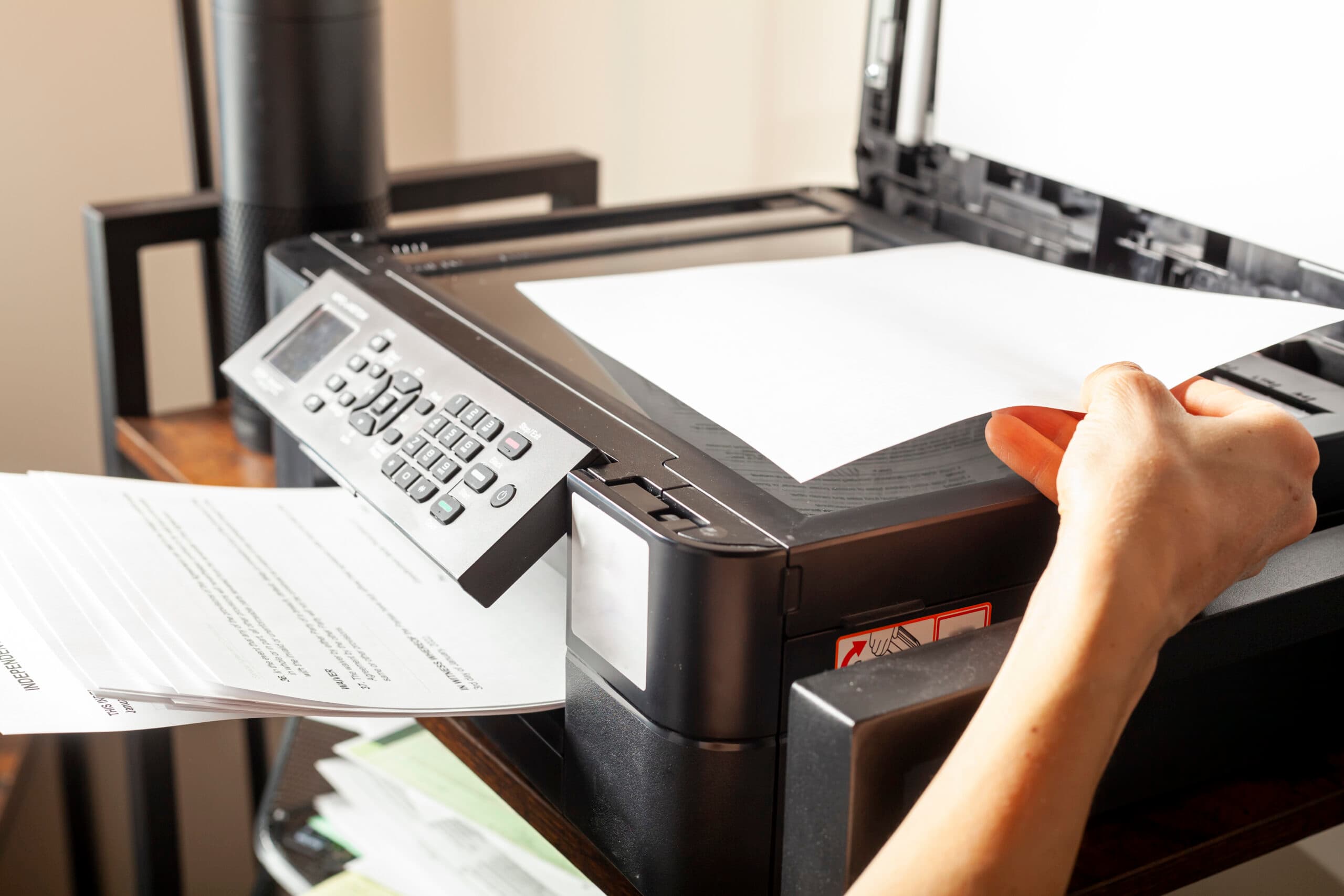
Poor print quality can be a significant frustration in any office environment, affecting everything from internal documents to client presentations. Whether it’s streaks, smudges, faded text or imperfect images, subpar prints can detract from the professionalism of your work. Fortunately, there are several steps you can take to troubleshoot and improve the quality of your prints.
Regularly cleaning your printer is crucial. Dust, debris, and ink or toner residue can accumulate over time, affecting print quality. Most printers have a maintenance mode that you can run, which will clean the print heads and correct any issues with ink or toner distribution.
One of the most common culprits behind poor print quality is low or empty ink or toner cartridges. If prints are looking faded or streaky, check your ink or toner levels and replace any cartridges that are low or empty. Also, ensure that you’re using cartridges that are compatible with your printer model, as incompatible cartridges can sometimes cause quality issues.
Not all paper is created equal, especially when it comes to printing quality documents or images. Using the wrong type of paper can lead to poor ink absorption and smearing. Ensure you’re using the correct paper for your specific printing needs — for instance, use photo paper for printing high-quality images and presentation paper for important documents.
Before you print, take a moment to review your printer settings. Selecting the best quality print option, adjusting the paper type, and choosing the correct color settings can all significantly improve print quality. For complex documents or images, consider using a higher DPI (dots per inch) setting for finer detail.
Outdated or corrupt printer drivers can lead to a host of print quality problems. Ensure that your printer’s drivers are up to date by downloading the latest version. This can help resolve any software-related issues that might be affecting print quality.
Printers need to be properly aligned and calibrated to produce the best quality prints. This is particularly true for color printers that need precise calibration to accurately reproduce colors. Use your printer’s alignment and calibration tools regularly, especially after installing new cartridges.
Physical issues with your printer such as misaligned trays or damaged rollers can affect print quality. Handle your printer with care, especially when moving it, loading paper, or replacing cartridges. Regularly check for and gently remove any paper jams without damaging the internal mechanics.
If you’ve tried all the above steps and still aren’t seeing an improvement in print quality, it might be time to consult a professional. Our DEXpert service technicians can check for issues that aren’t easily fixable in an office setting, such as internal mechanical problems or deep cleaning needs.
By taking these steps to maintain and optimize your printer, you can significantly improve the quality of your prints. Regular attention and care not only enhance the professionalism of your documents but also extend the lifespan of your office printer, making it a win-win investment for your work environment.